> For the complete documentation index, see [llms.txt](https://docs-epc.gitbook.io/ncs-documents/llms.txt). Markdown versions of documentation pages are available by appending `.md` to page URLs; this page is available as [Markdown](https://docs-epc.gitbook.io/ncs-documents/tutorial/installing-nvidia-gpu-drivers-on-linux.md).
# Installing Nvidia GPU Drivers on Linux
This document provides instructions for installing Nvidia GPU drivers
## Installation on Red Hat Enterprise Linux (RHEL 9)
Follow these steps to install Nvidia drivers and `nvidia-smi` on your RHEL 9 instance.
#### Step 1: Enable EPEL and CodeReady Builder Repositories
First, update the DNF package repository cache and enable necessary repositories.
```bash
# Update the DNF package repository cache
sudo dnf makecache
# Enable the RHEL 9 CodeReady Builder package repository.
# This repository provides additional development tools and libraries.
sudo subscription-manager repos --enable codeready-builder-for-rhel-9-$(uname -i)-rpms
# Install the epel-release package. EPEL (Extra Packages for Enterprise Linux)
# provides high-quality add-on packages for RHEL.
sudo dnf install -y https://dl.fedoraproject.org/pub/epel/epel-release-latest-9.noarch.rpm
# Update the DNF package repository cache again to ensure all changes take effect.
sudo dnf makecache
```
#### Step 2: Install Dependencies and Build Tools
Install the necessary build tools and kernel headers required for compiling Nvidia kernel modules.
```bash
# Install essential build tools (gcc, make, dkms) and kernel development headers.
# These are crucial for the Nvidia driver to build against your specific kernel version.
sudo dnf install -y kernel-devel-$(uname -r) kernel-headers-$(uname -r) gcc make dkms acpid libglvnd-glx libglvnd-opengl libglvnd-devel pkgconfig
```
#### Step 3: Add the Nvidia CUDA Repository
Add the official Nvidia CUDA package repository to your system. This repository contains the latest Nvidia drivers and CUDA toolkit.
```bash
# Add the Nvidia CUDA repository for RHEL 9.
sudo dnf config-manager --add-repo http://developer.download.nvidia.com/compute/cuda/repos/rhel9/$(uname -i)/cuda-rhel9.repo
# Update the DNF package repository cache to reflect the new addition.
sudo dnf makecache
```
#### Step 4: Install Nvidia GPU Drivers
Install the Nvidia GPU drivers from the newly added repository.
```bash
# Install the latest open-source kernel module based Nvidia driver.
# The '--allowerasing' flag might be needed if there are conflicts with existing drivers (e.g., nouveau).
sudo dnf module install -y nvidia-driver:open-dkms --allowerasing
# If you prefer a specific driver version (e.g., version 535), use the command below instead:
sudo dnf module install -y nvidia-driver:535 --allowerasing
```
#### Step 5: Verify the Installation
After the installation is complete, **reboot your system** to ensure the new drivers are loaded correctly.
```
sudo reboot
```
After rebooting, log back in and verify the driver installation:
```bash
# Check if the proprietary 'nvidia' kernel module is loaded.
# This command should return results indicating the Nvidia driver is active.
lsmod | grep nvidia
# Check if the open-source 'nouveau' driver module is NOT loaded.
# This command should ideally return nothing, indicating nouveau is successfully blacklisted.
lsmod | grep nouveau
# Finally, confirm the drivers are working correctly by running nvidia-smi.
# This command should display information about your Nvidia GPU(s).
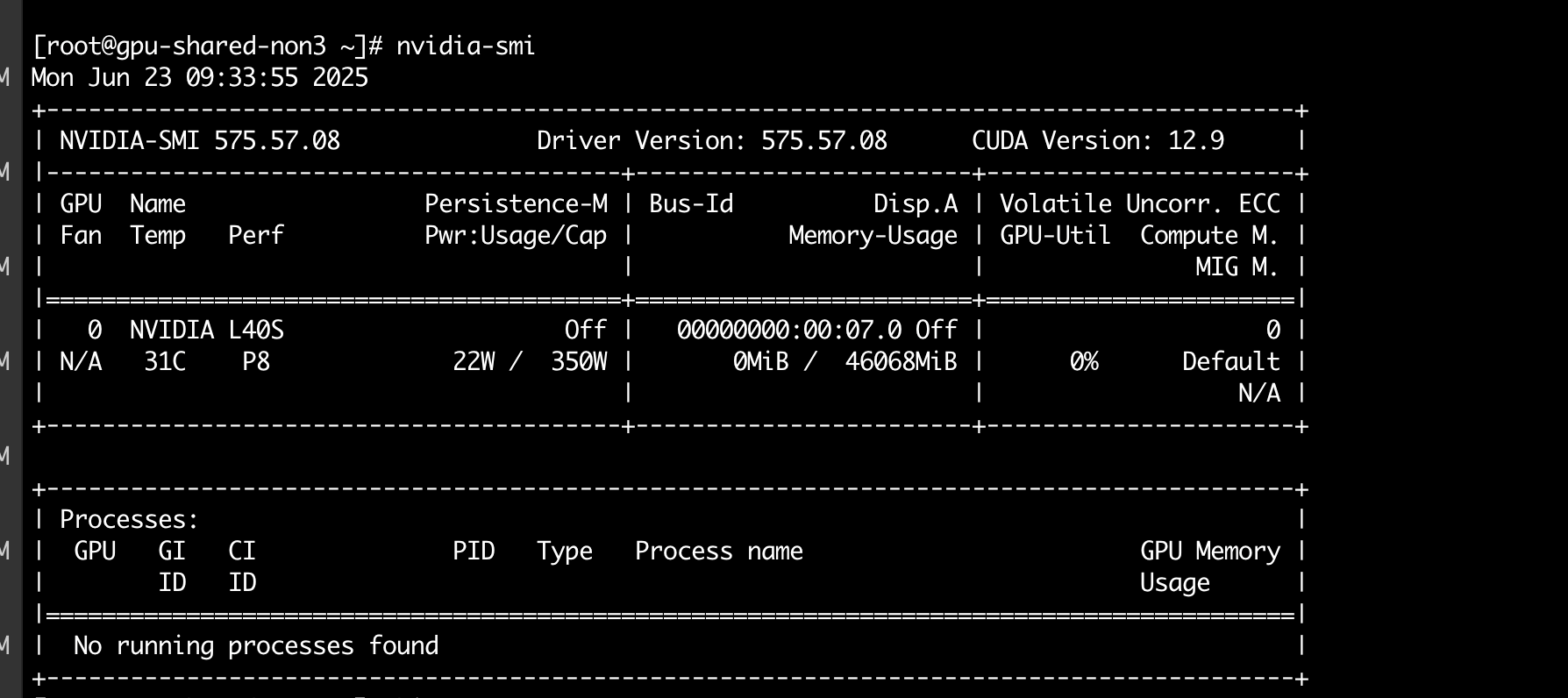
nvidia-smi
```
result of nvidia-smi command
***
## Installation on Ubuntu
Follow these steps to install Nvidia drivers and `nvidia-smi` on your Ubuntu instance. The process is generally simpler on Ubuntu.
#### Step 1: Update Package Lists
Before installing any new packages, ensure your system's package lists are up-to-date.
```bash
# Update the list of available packages and their versions.
sudo apt update
# Upgrade all your installed packages to their latest versions.
sudo apt upgrade -y
```
#### Step 2: Install Nvidia GPU Drivers
Ubuntu provides a utility to automatically detect and install the recommended Nvidia drivers. This is the simplest method.
```bash
# Automatically install the recommended proprietary Nvidia drivers for your system.
sudo ubuntu-drivers autoinstall
```
Alternatively, if you want to install a specific driver version (e.g., `nvidia-driver-535`), you can first search for available drivers and then install the desired one:
```bash
# Search for available Nvidia driver packages.
apt search nvidia-driver
# Install a specific driver version (replace '535' with the desired version).
sudo apt install nvidia-driver-535
# This will also install nvidia-smi as part of the driver package.
```
#### Step 3: Verify the Installation
After the installation is complete, **reboot your system** to ensure the new drivers are loaded correctly.
```bash
sudo reboot
```
After rebooting, log back in and verify the driver installation:
```bash
# Check if the proprietary 'nvidia' kernel module is loaded.
# This command should return results indicating the Nvidia driver is active.
lsmod | grep nvidia
# Check if the open-source 'nouveau' driver module is NOT loaded.
# This command should ideally return nothing, indicating nouveau is successfully blacklisted.
lsmod | grep nouveau
# Finally, confirm the drivers are working correctly by running nvidia-smi.
# This command should display information about your Nvidia GPU(s).
nvidia-smi
```