# Having Problem In a Project

## Instruction

## 1. **Accessing Customer Support**

Access the customer support page via the link in the **bottom-right of the sidebar**.

![Customer Support Link on Sidebar](https://content.gitbook.com/content/4csDFrNQz0Q4tDnx3xyT/blobs/G5RVN6CiNIHLFlk9Nq46/customer-support-sidebar.png)

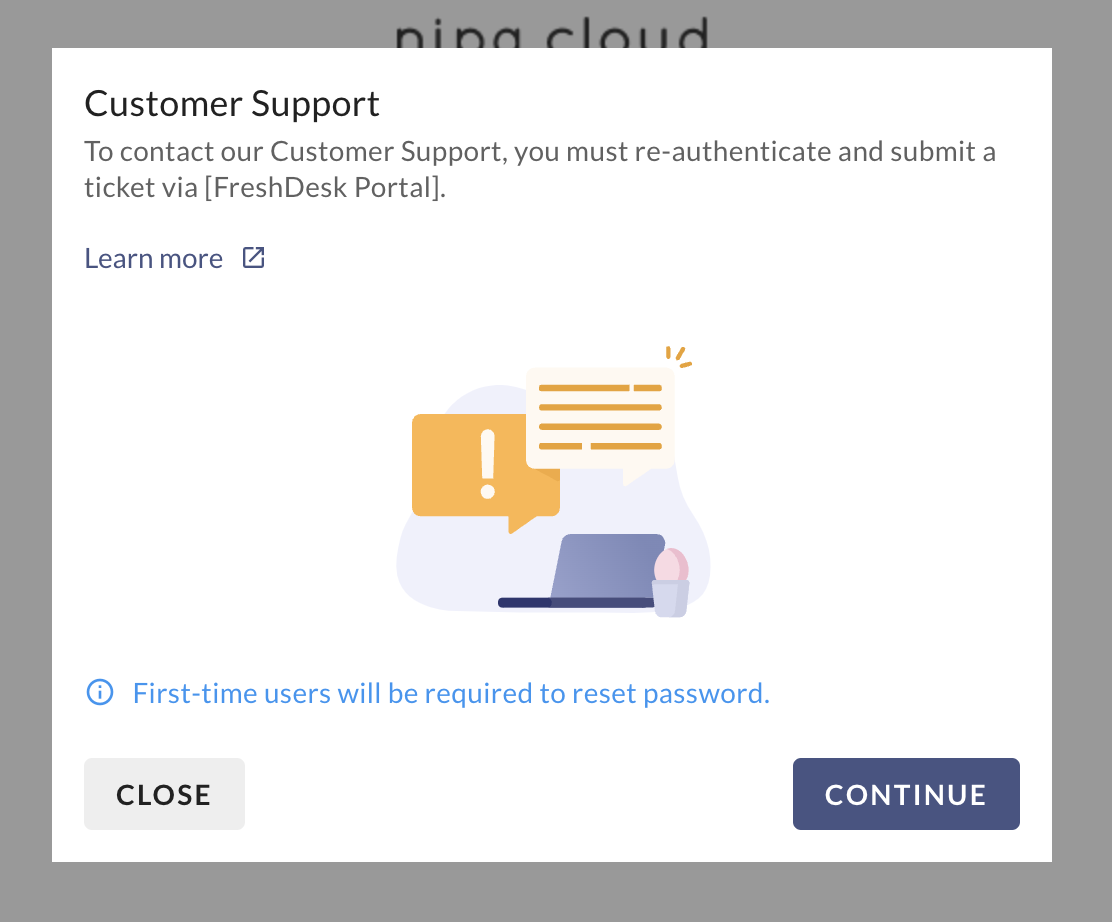
The system will display a window explaining how to use the customer support page.

<figure><img src="https://content.gitbook.com/content/4csDFrNQz0Q4tDnx3xyT/blobs/yTI7Wib3cZ3jkW3kQrwc/Screenshot%202566-04-24%20at%2008.59.37.png" alt=""><figcaption><p>Csutomer Support Guide</p></figcaption></figure>

### 2. **Entering the Customer Support Page**

Click the **"continue"** button to enter the customer support page.

* If you have used the customer support page before, you can log in directly and skip to step 4.
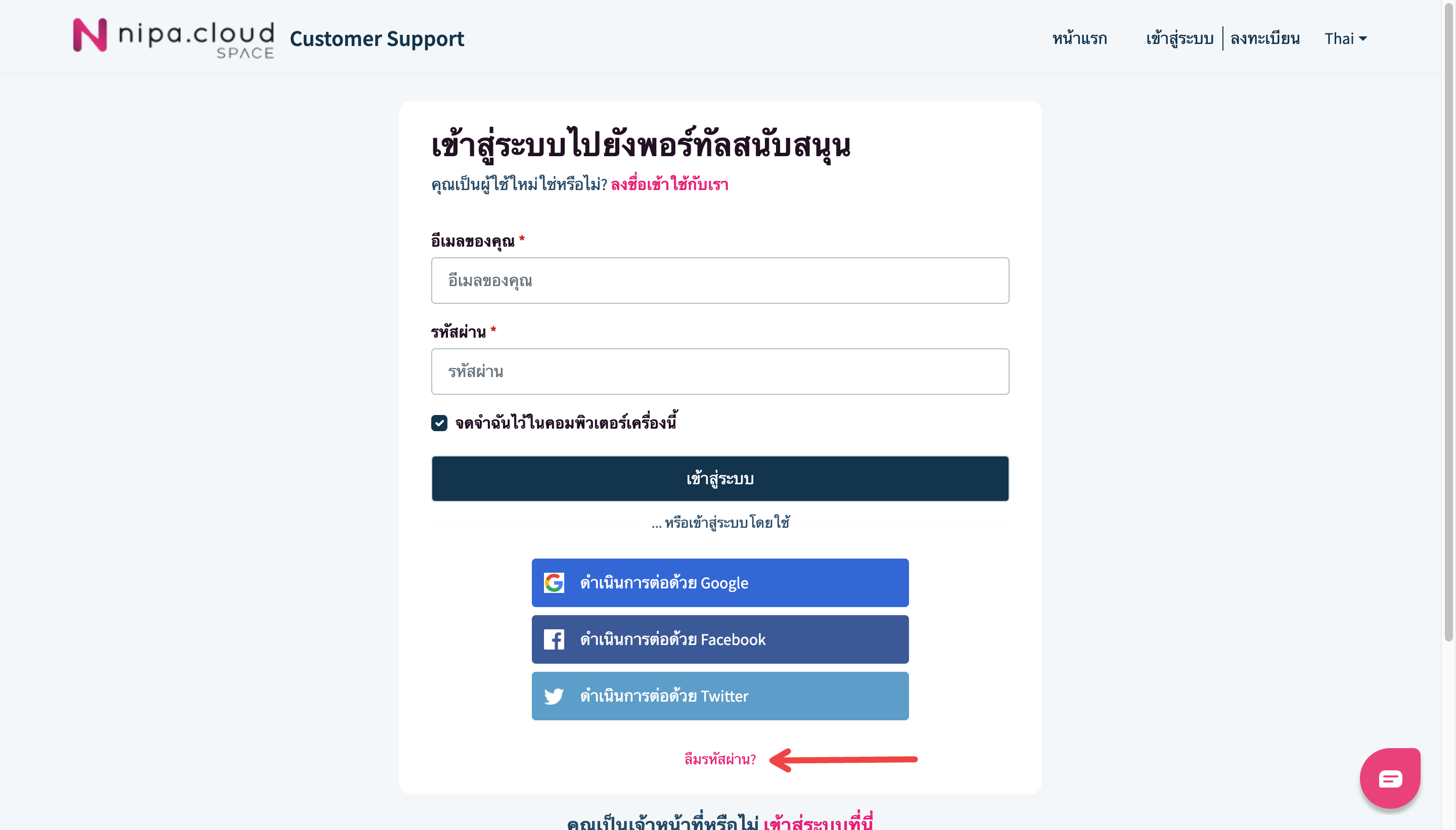
* However, if this is your first time visiting this page, you must reset your password by clicking the 'forgot password' button.

<figure><img src="https://content.gitbook.com/content/4csDFrNQz0Q4tDnx3xyT/blobs/ImeultNjWS5CYw565vG3/screenbud-fca914ad-d2ce-4481-82d6-d55356ed6536.png" alt=""><figcaption></figcaption></figure>

### 3. **Reset Your Password**

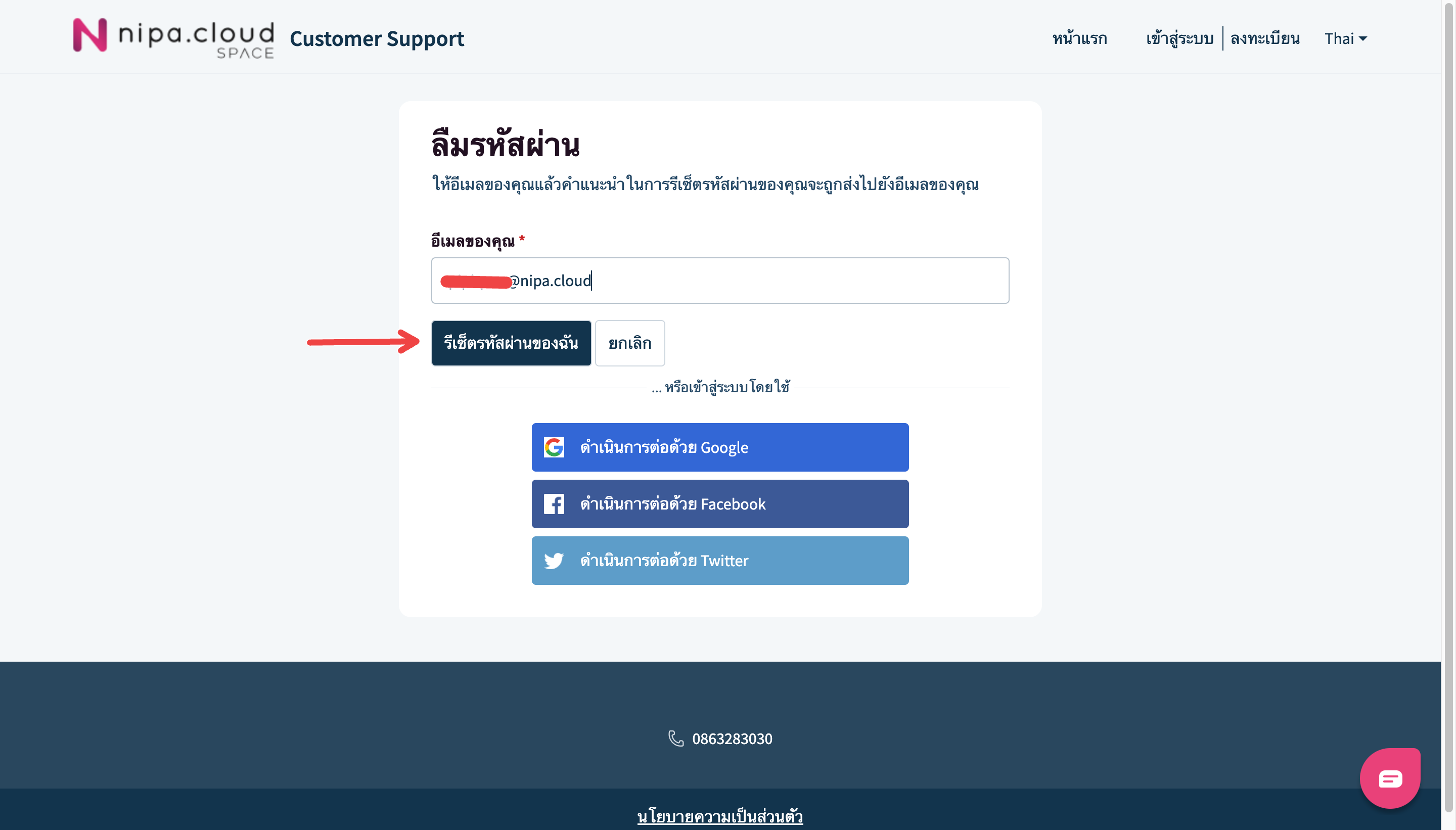
On the 'forgot password' page, enter the email address associated with your Nipa Cloud Space account and click the "Reset my password" button.

<figure><img src="https://content.gitbook.com/content/4csDFrNQz0Q4tDnx3xyT/blobs/woSpYumoPZkLATQiLkL3/screenbud-02ab7262-025c-4406-b75d-2374350504e9.png" alt=""><figcaption><p>Sending Reset Password Email</p></figcaption></figure>

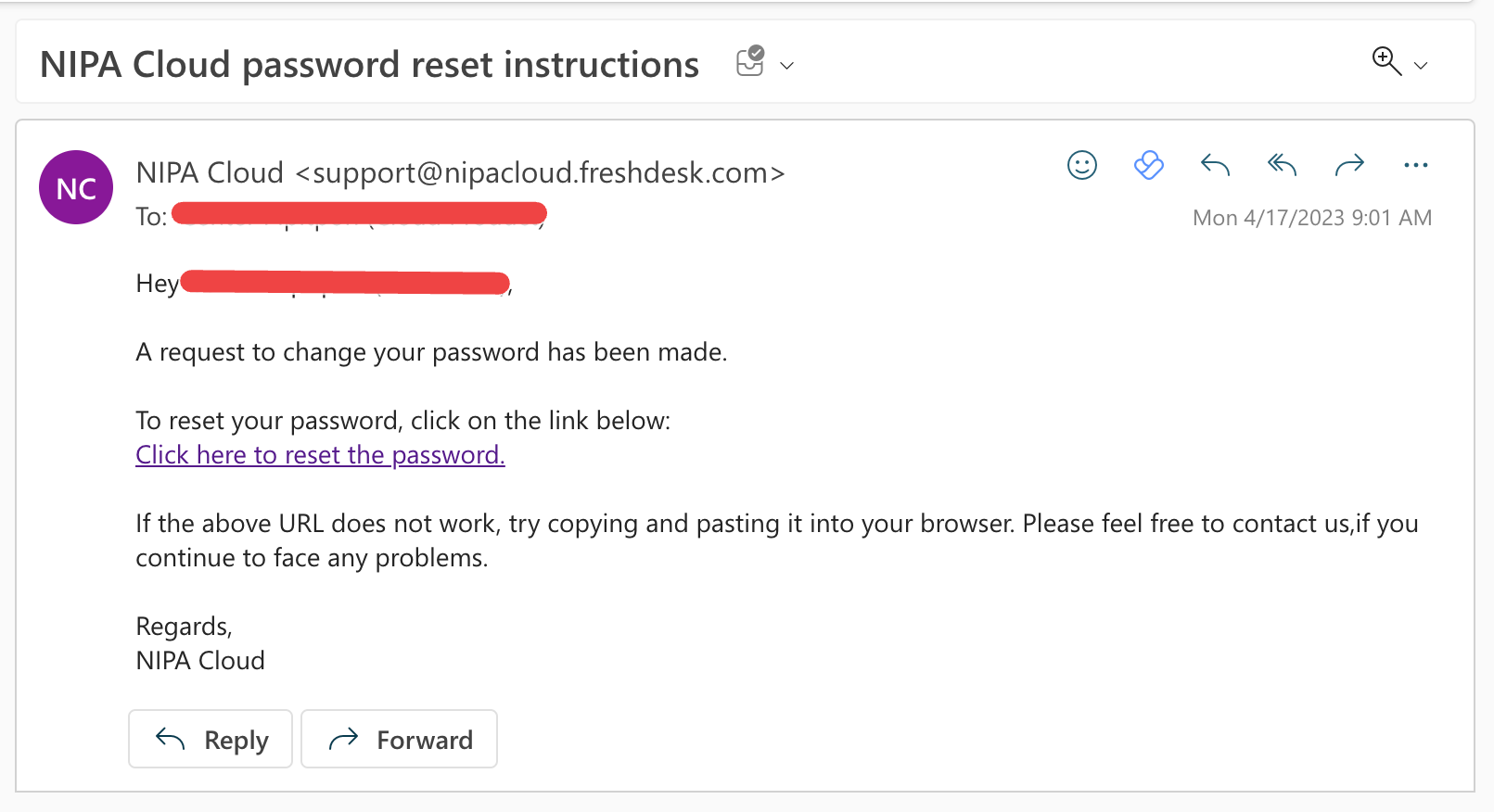
After a short while, you will receive an email to reset your password. Click the "Click here to reset the password" link in that email.

<figure><img src="https://content.gitbook.com/content/4csDFrNQz0Q4tDnx3xyT/blobs/ixf0sL2vg5i0bzYVwvRF/screenbud-3cc60584-0eb9-4aef-a227-5860d95b5e16.png" alt=""><figcaption><p>Reset Password Email</p></figcaption></figure>

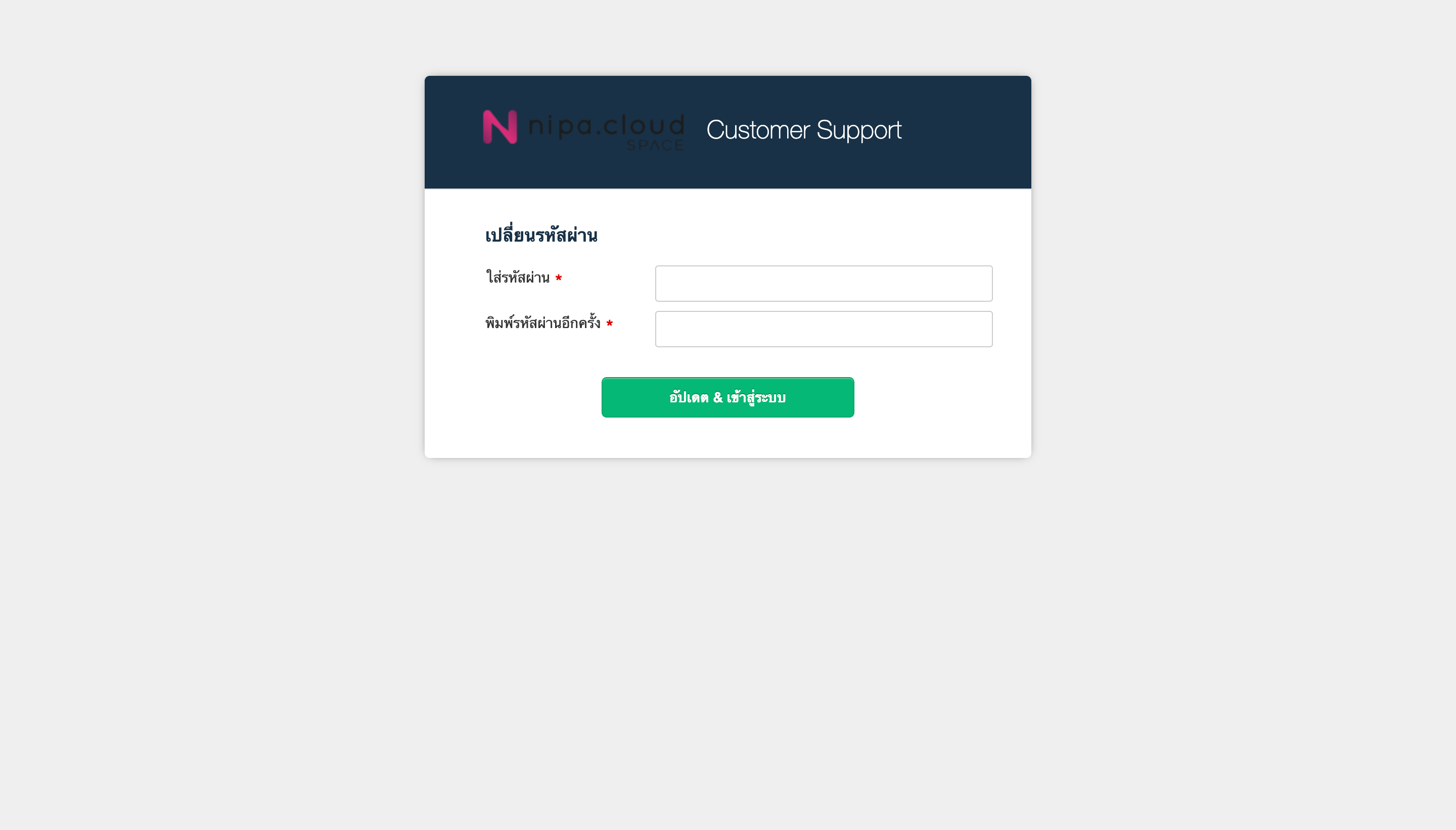
On the password reset page, enter your desired new password, confirm it, and click "Update & Log in".

<figure><img src="https://content.gitbook.com/content/4csDFrNQz0Q4tDnx3xyT/blobs/oCgXxFrn8LdkYhDqzmBE/screenbud-3977c5fa-72cd-4d06-aa06-f94d65c35808.png" alt=""><figcaption><p>Reet Password Page</p></figcaption></figure>

You will then be logged in. Click the "submit a ticket" button to proceed to step 5.

<figure><img src="https://content.gitbook.com/content/4csDFrNQz0Q4tDnx3xyT/blobs/1N8ZaUVMdjbIuYF5wyfl/screenbud-79ecbddb-2b09-4af6-b778-ffd14cbd6dab%20(1).png" alt=""><figcaption><p>Password Reseted</p></figcaption></figure>

### 4. Log in to Customer Support

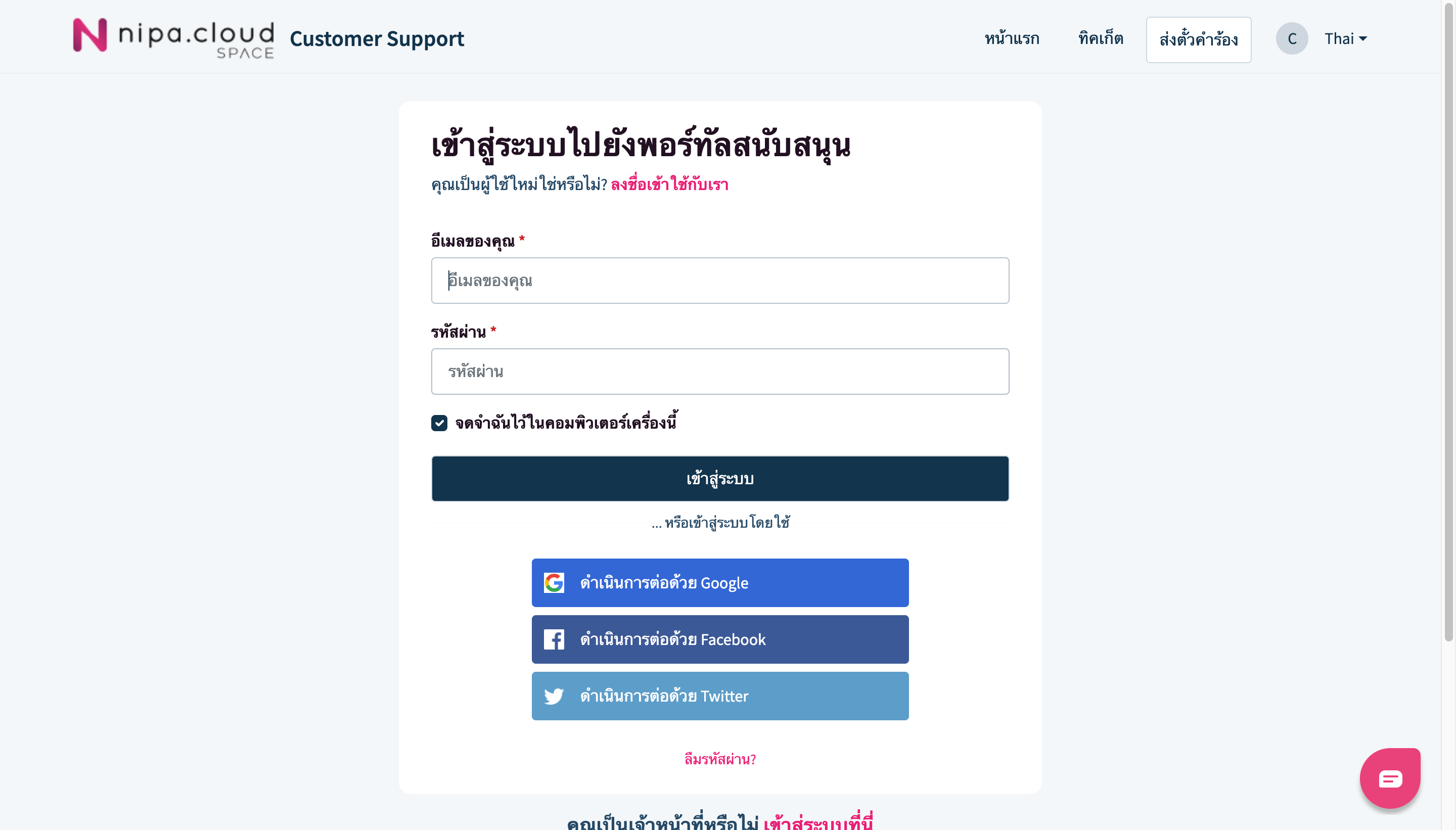
Enter the email you use for Nipa Cloud Space and your new or existing password. Then, click the "submit a ticket" button to go to the ticket creation page.

<figure><img src="https://content.gitbook.com/content/4csDFrNQz0Q4tDnx3xyT/blobs/BO0jOQ6zcCz2C7QsHUBz/screenbud-c05f9be1-90c3-450f-a9a5-82c573824b9e.png" alt=""><figcaption><p>Customer Support Login Page</p></figcaption></figure>

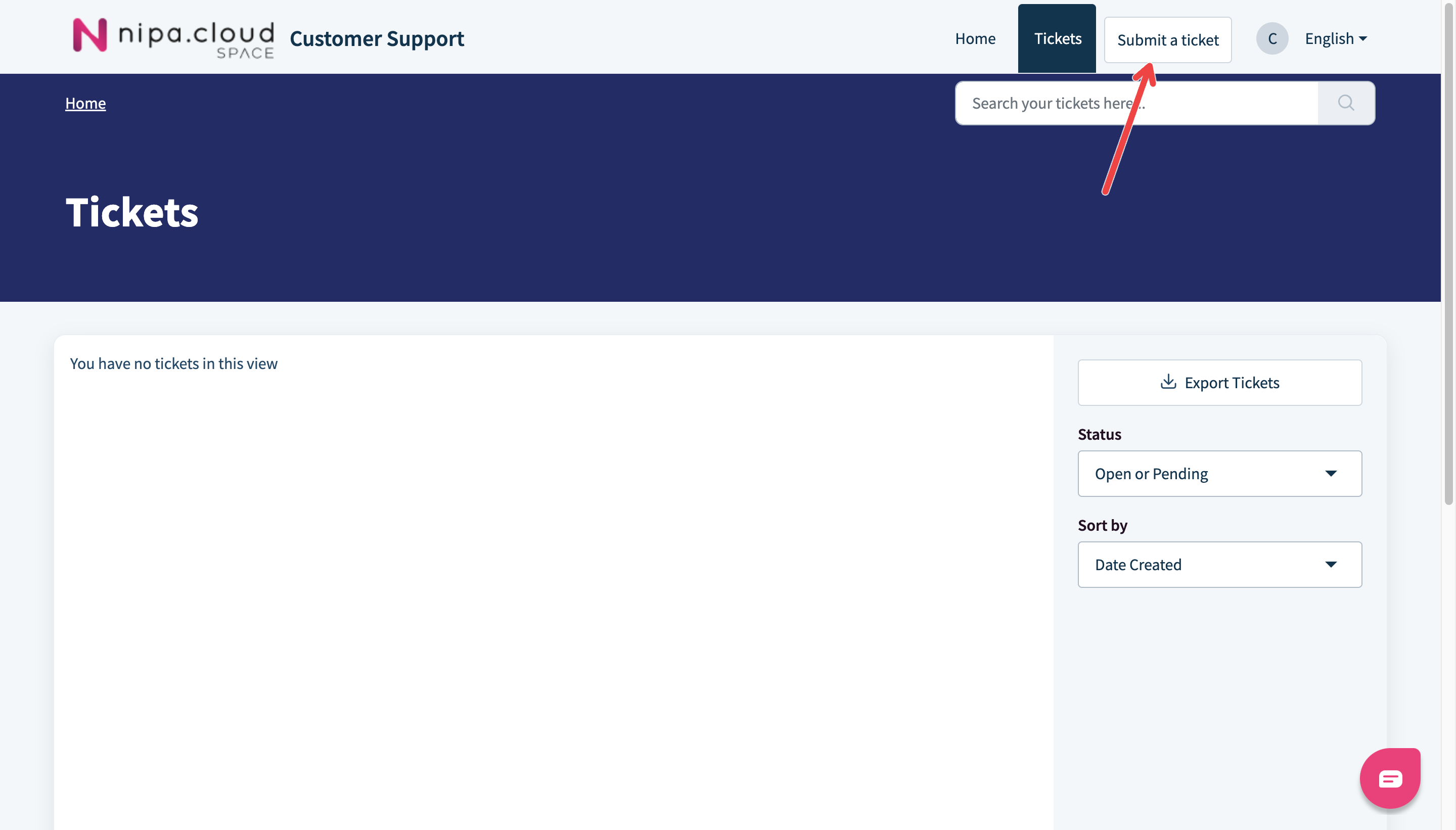
Then, click the "submit a ticket" button to go to the ticket creation page.

<figure><img src="https://content.gitbook.com/content/4csDFrNQz0Q4tDnx3xyT/blobs/dA2ojMDEKHDQT7LVJUgW/screenbud-440c8de5-f98d-455f-9026-51d7fb8fef8d.png" alt=""><figcaption><p>Loged In Customer Support System</p></figcaption></figure>

### 5. **Fill in the Details of Your Issue**

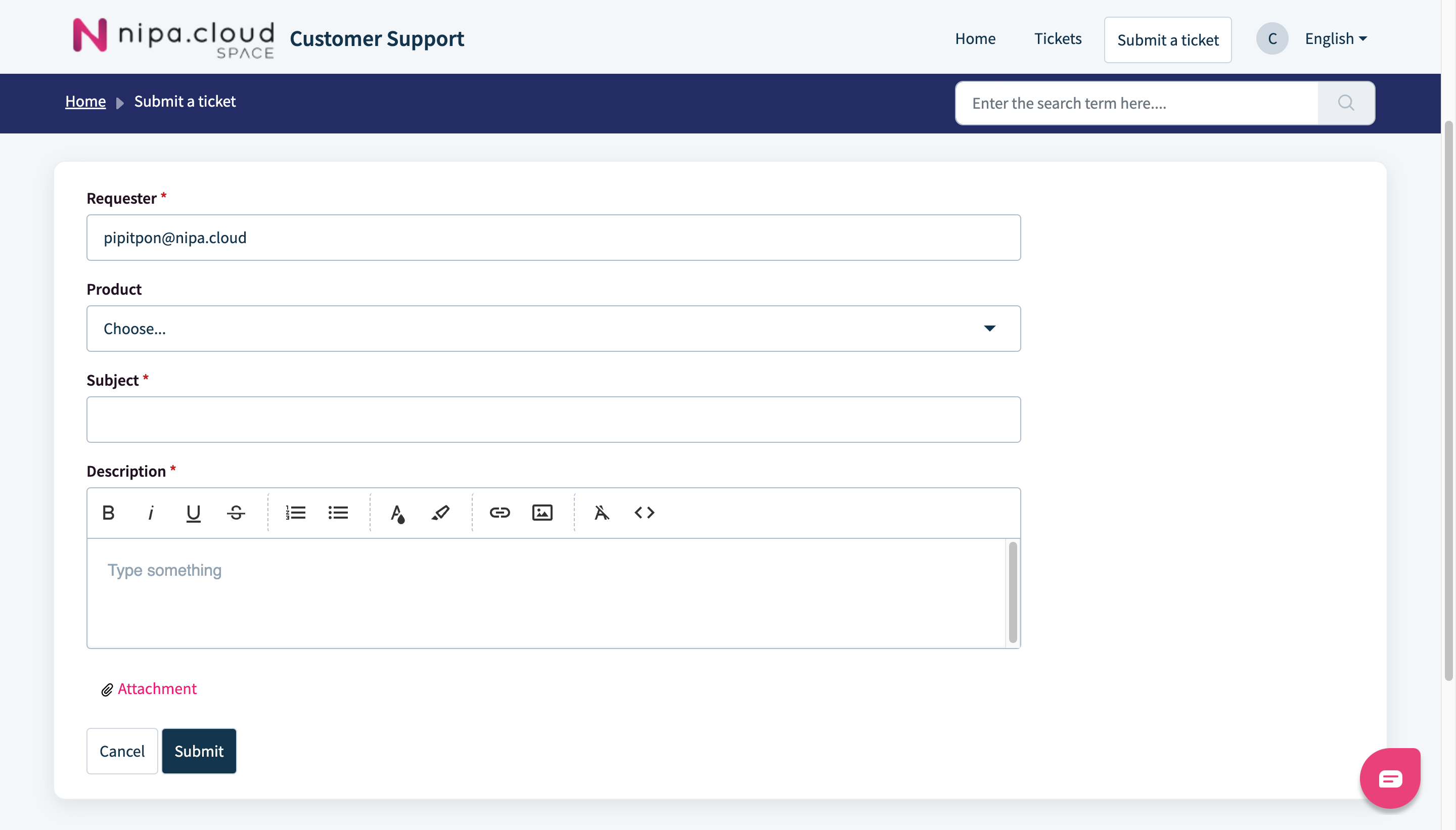
Enter your email, the related product, a subject, and a detailed description of the issue. Attach any relevant image files if you have them.

<figure><img src="https://content.gitbook.com/content/4csDFrNQz0Q4tDnx3xyT/blobs/QTxThoOpko3GJgTfQLVS/screenbud-5f5cf75c-a1cc-4488-9177-caa8f491d388.png" alt=""><figcaption><p>Submit a Ticket Page</p></figcaption></figure>

The support team will contact you via email within 24 hours.